การเข้าสู่ระบบ
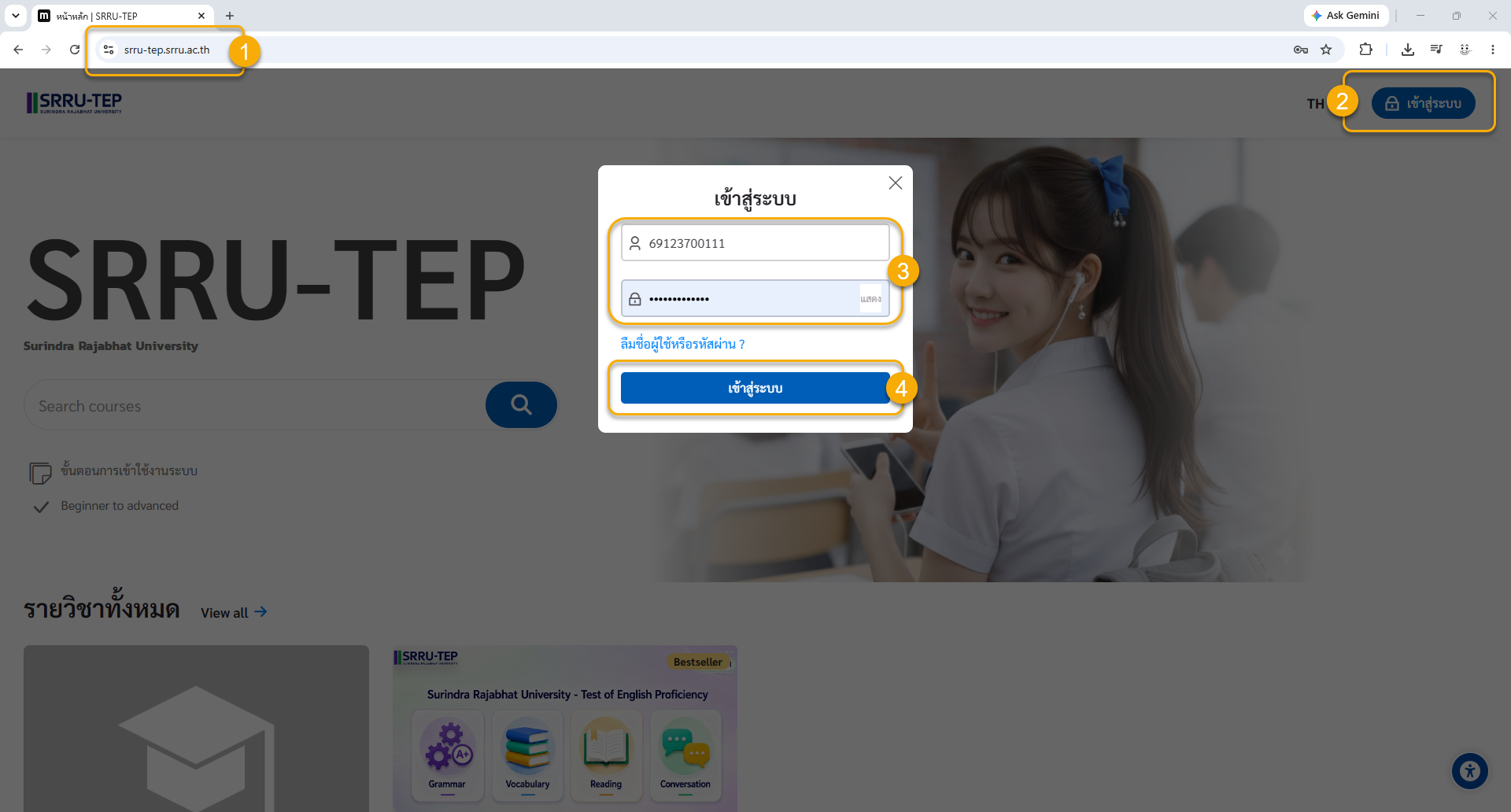
ขั้นตอนการเข้าสู่ระบบ
- เข้าผ่านโดยตรงที่เว็บไซต์ https://srru-tep.srru.ac.th/
- คลิกที่ไอคอน กุญแจ มุมขวาบน
- กรอก ชื่อผู้ใช้ (Username/รหัสนักศึกษา) รหัสผ่าน (Password/เลขบัตรประชาชน)
- คลิกปุ่ม Login เพื่อเข้าสู่ระบบ
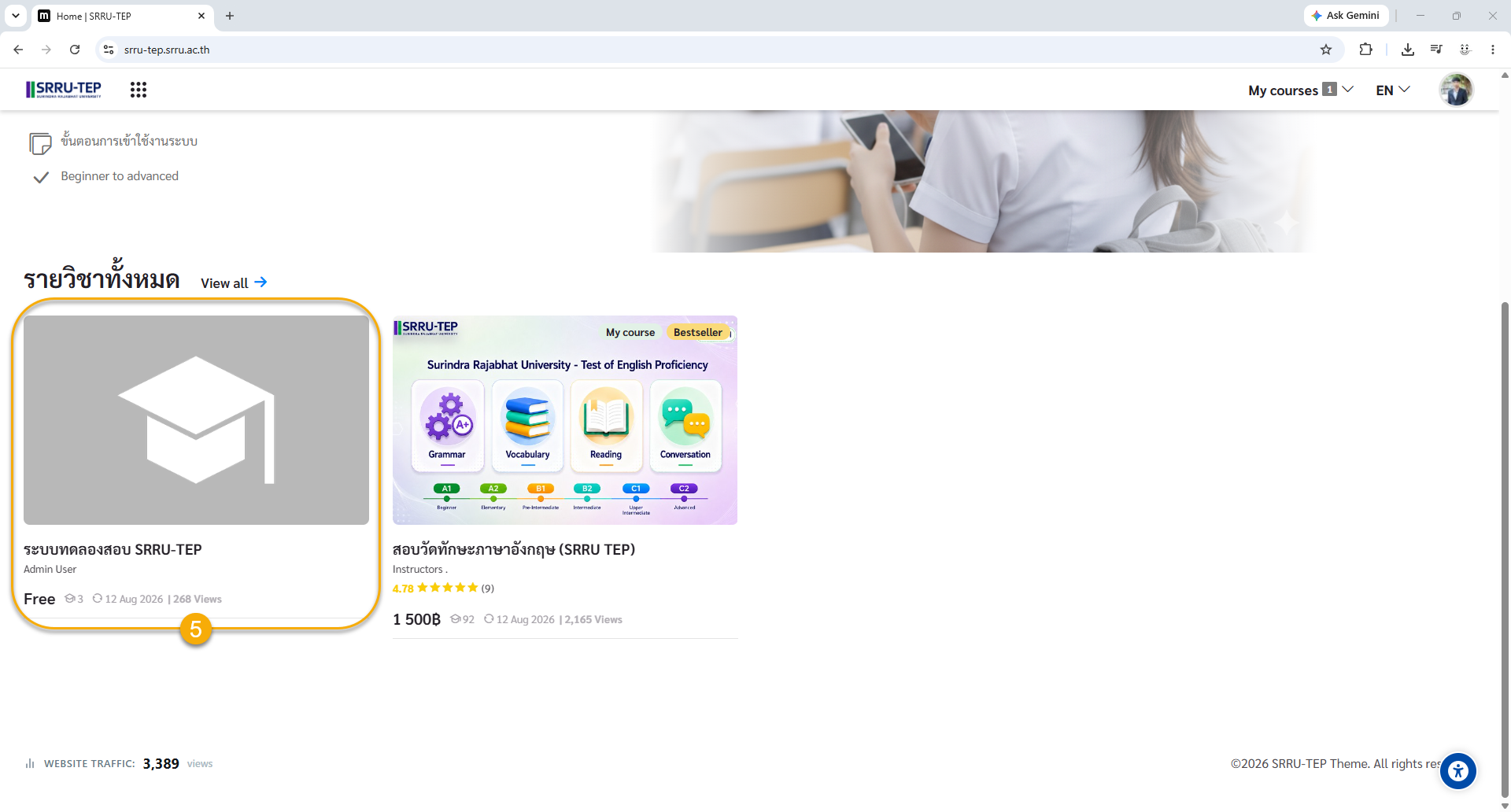
การเลือกและสมัครเรียนคอร์ส
- เลือก หน้าหลัก ระบบจะแสดง คอร์สทั้งหมด คลิกเลือก คอร์สที่ต้องการเรียน
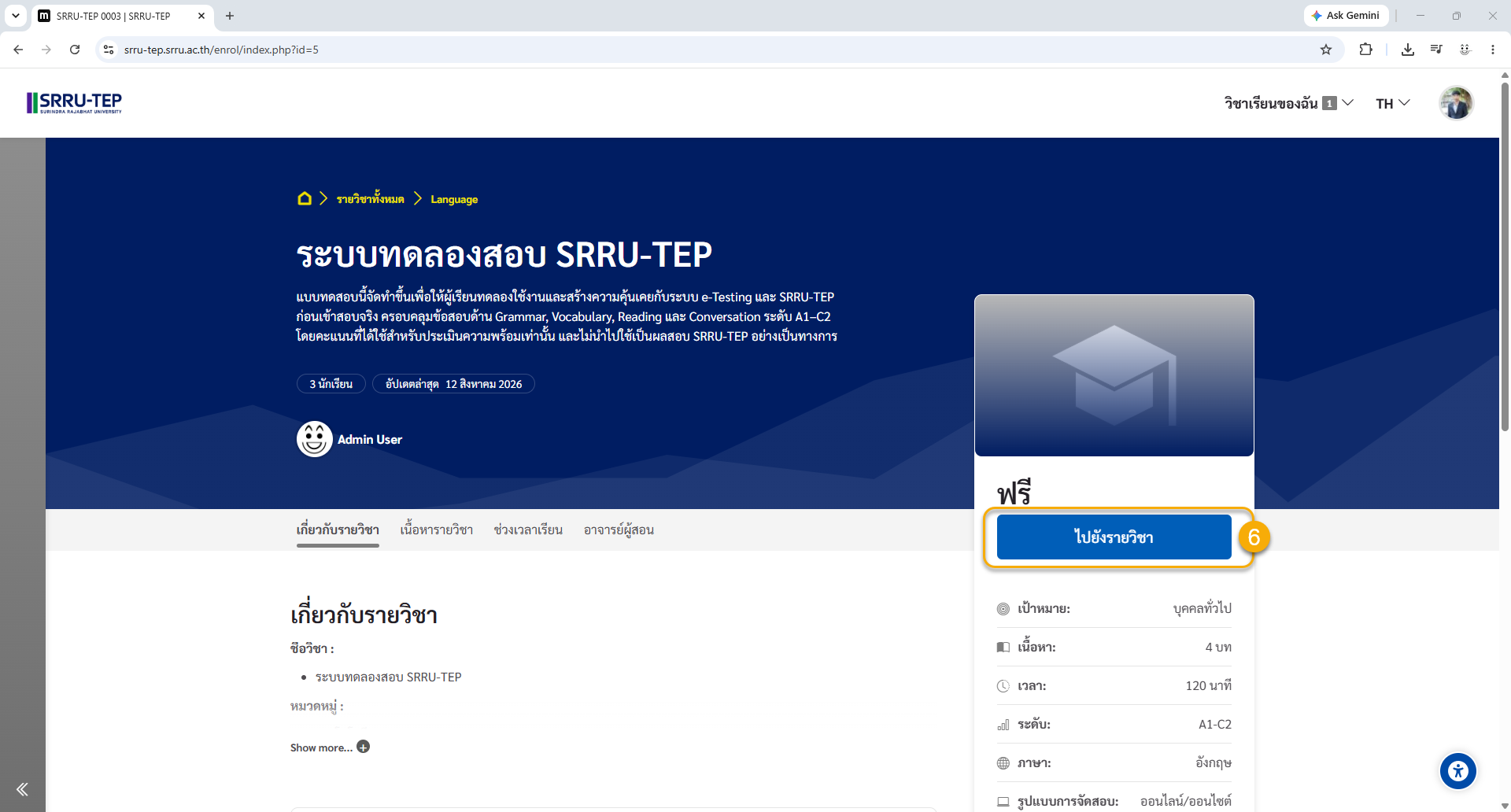
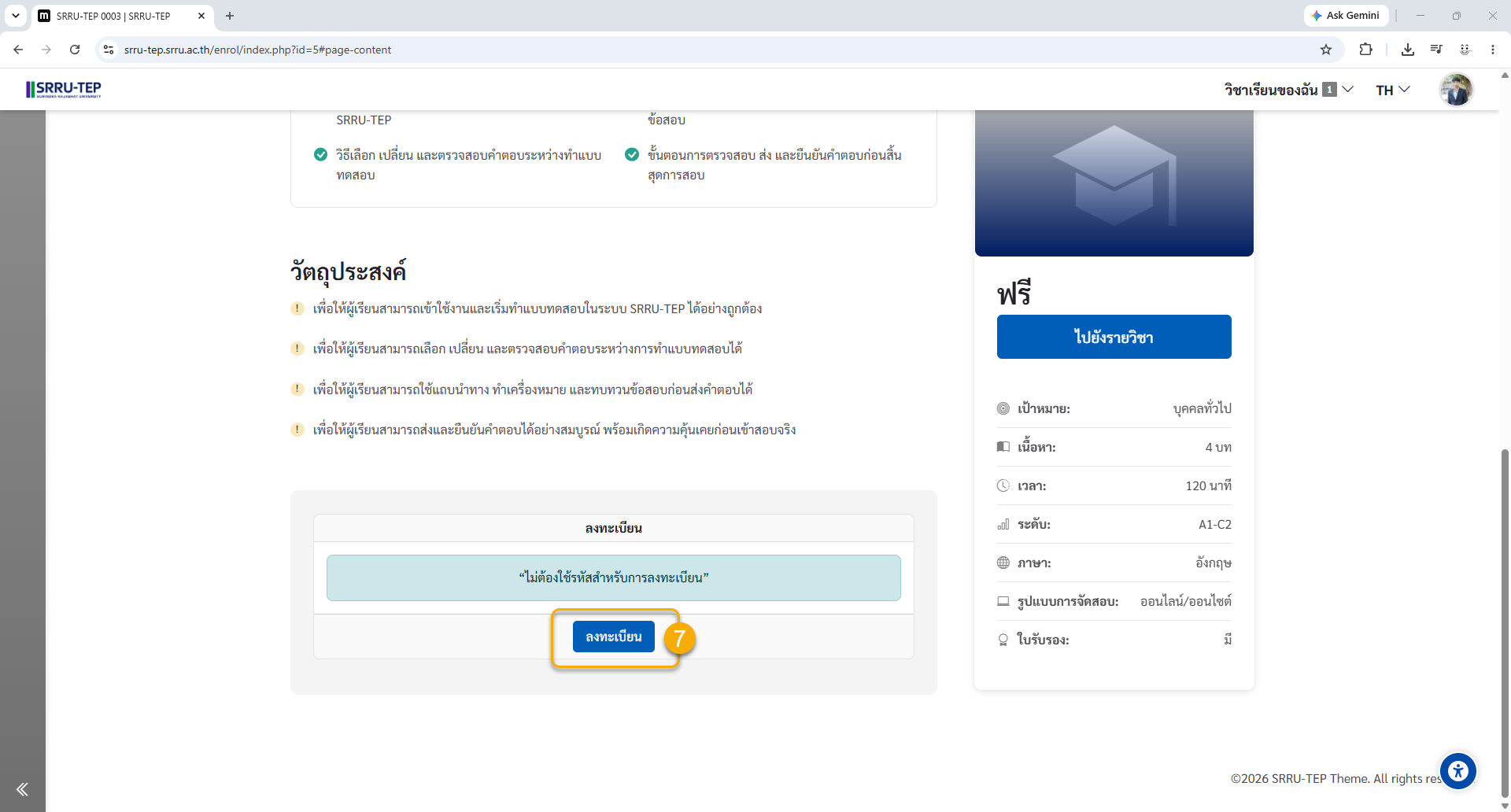
การลงทะเบียนเรียน
- เลือก ไปยังรายวิชา คลิก ลงทะเบียน
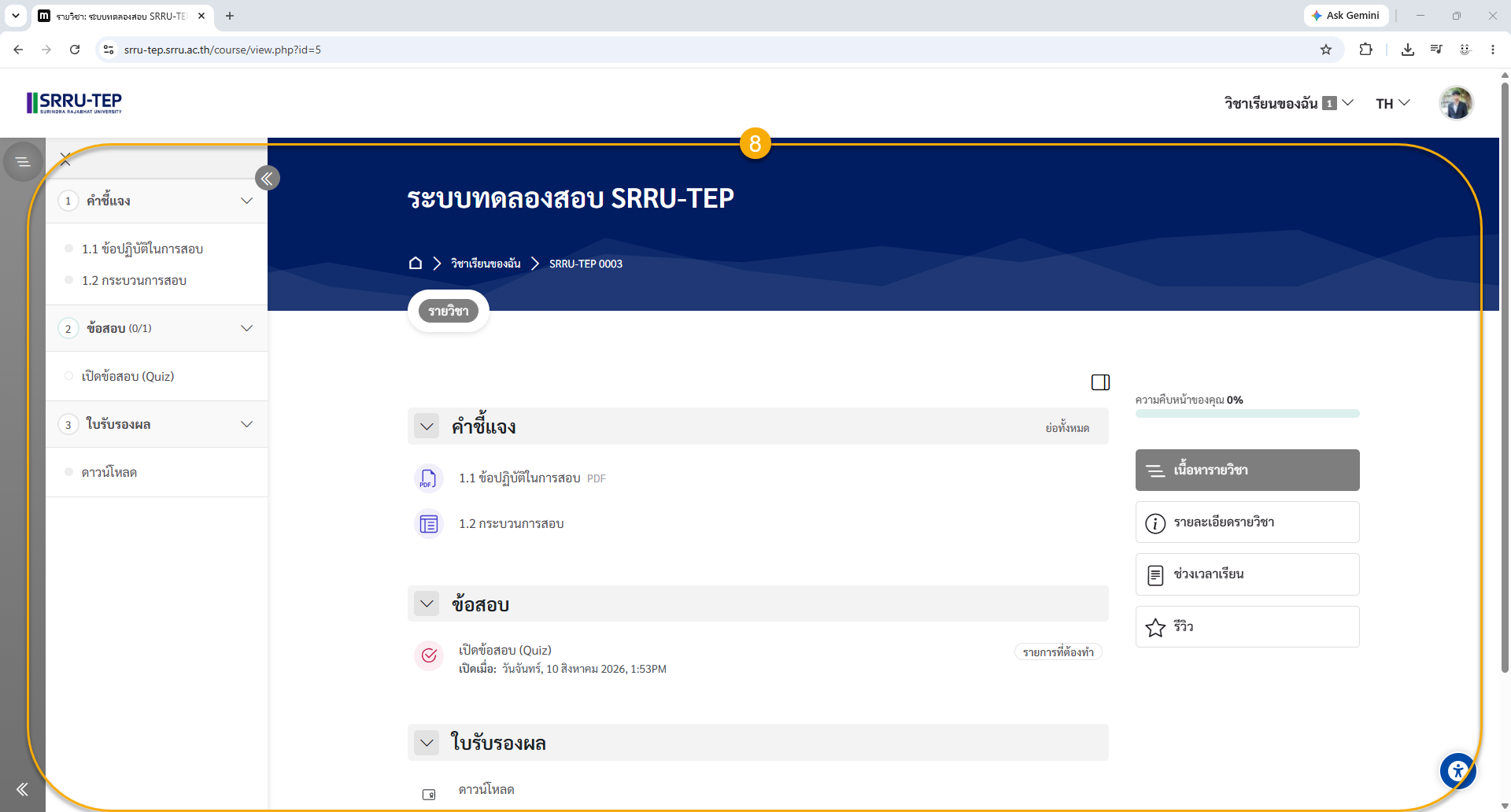
คอร์สที่ลงทะเบียนสำเร็จแล้ว
- แสดงรายละเอียดทั้งหมดของคอร์เรียนและกิจกรรมต่าง ๆ
ขั้นตอนการเข้าสอบระบบ SRRU-TEP
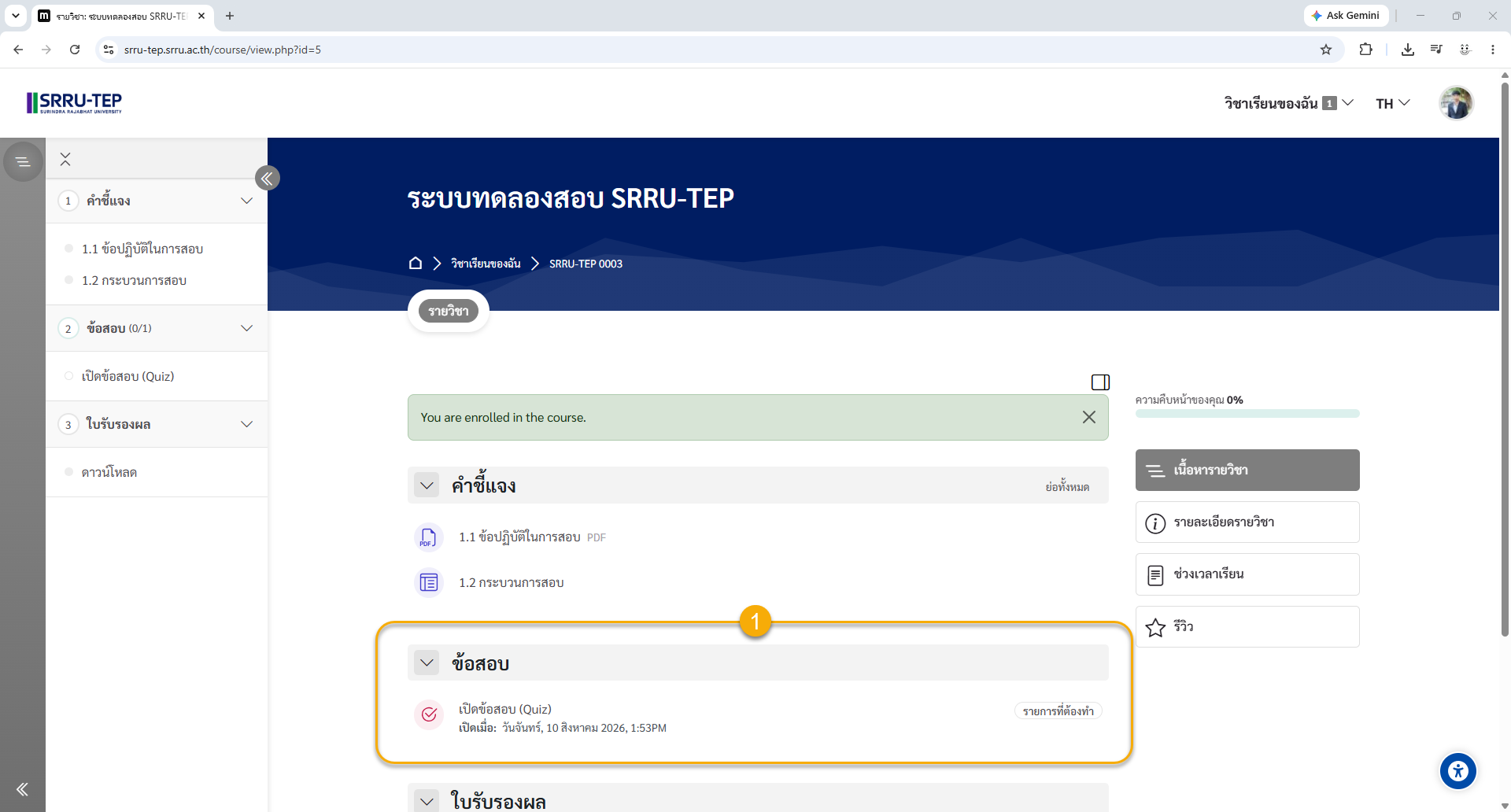
เข้าสู่รายวิชาและเลือก “เปิดข้อสอบ (Quiz)”
- หลังเข้าสู่ระบบ SRRU-TEP ให้เข้ารายวิชาที่ต้องการสอบ จากนั้นเลื่อนไปยังหัวข้อ “ข้อสอบ” แล้วคลิก “เปิดข้อสอบ (Quiz)”
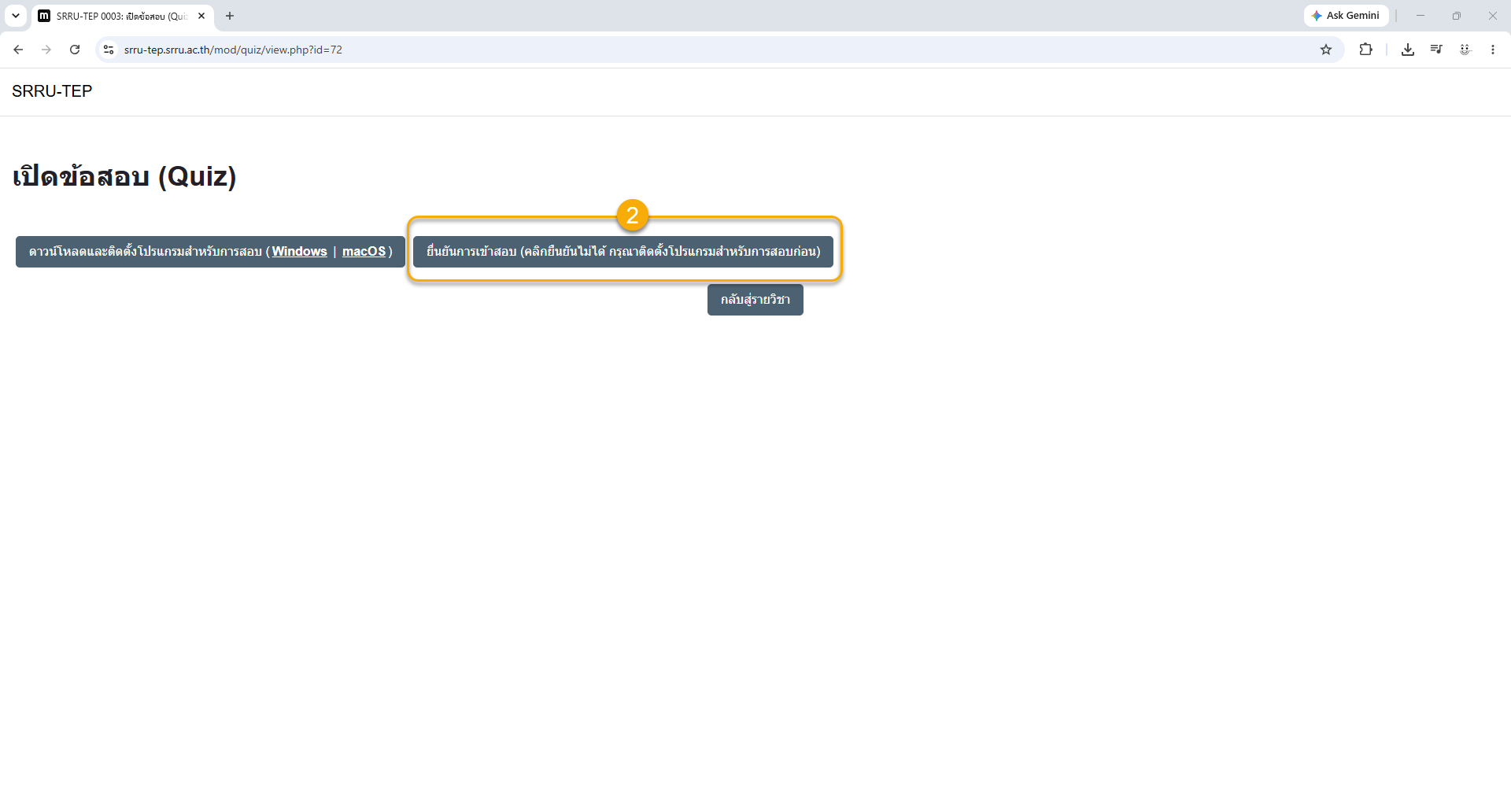
ยืนยันการเข้าสอบ
- ในหน้า เปิดข้อสอบ (Quiz) จะมีปุ่มสำหรับดาวน์โหลดโปรแกรมสอบ และปุ่ม “ยืนยันการเข้าสอบ” หากติดตั้ง Safe Exam Browser เรียบร้อยแล้ว ให้คลิกปุ่ม “ยืนยันการเข้าสอบ (คลิกยืนยันไม่ได้ กรุณาติดตั้งโปรแกรมสำหรับการสอบก่อน)”
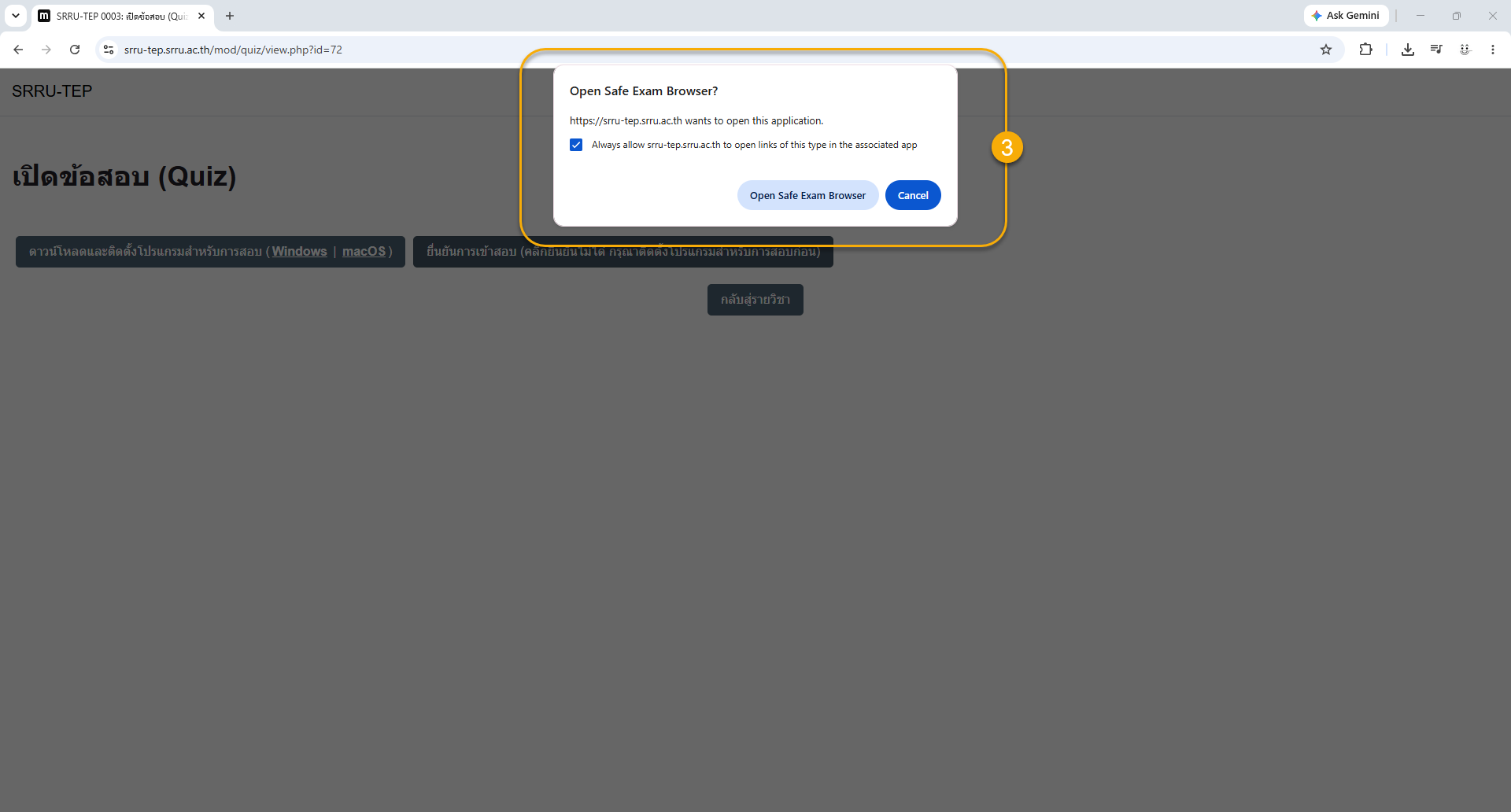
อนุญาตให้เว็บไซต์เปิด Safe Exam Browser
- Browser จะปรากฏหน้าต่าง “Open Safe Exam Browser?” เพื่อขออนุญาตเปิดโปรแกรม SEB สามารถทำเครื่องหมายอนุญาตให้เว็บไซต์เปิดลิงก์ประเภทนี้ได้ จากนั้นคลิก “Open Safe Exam Browser”
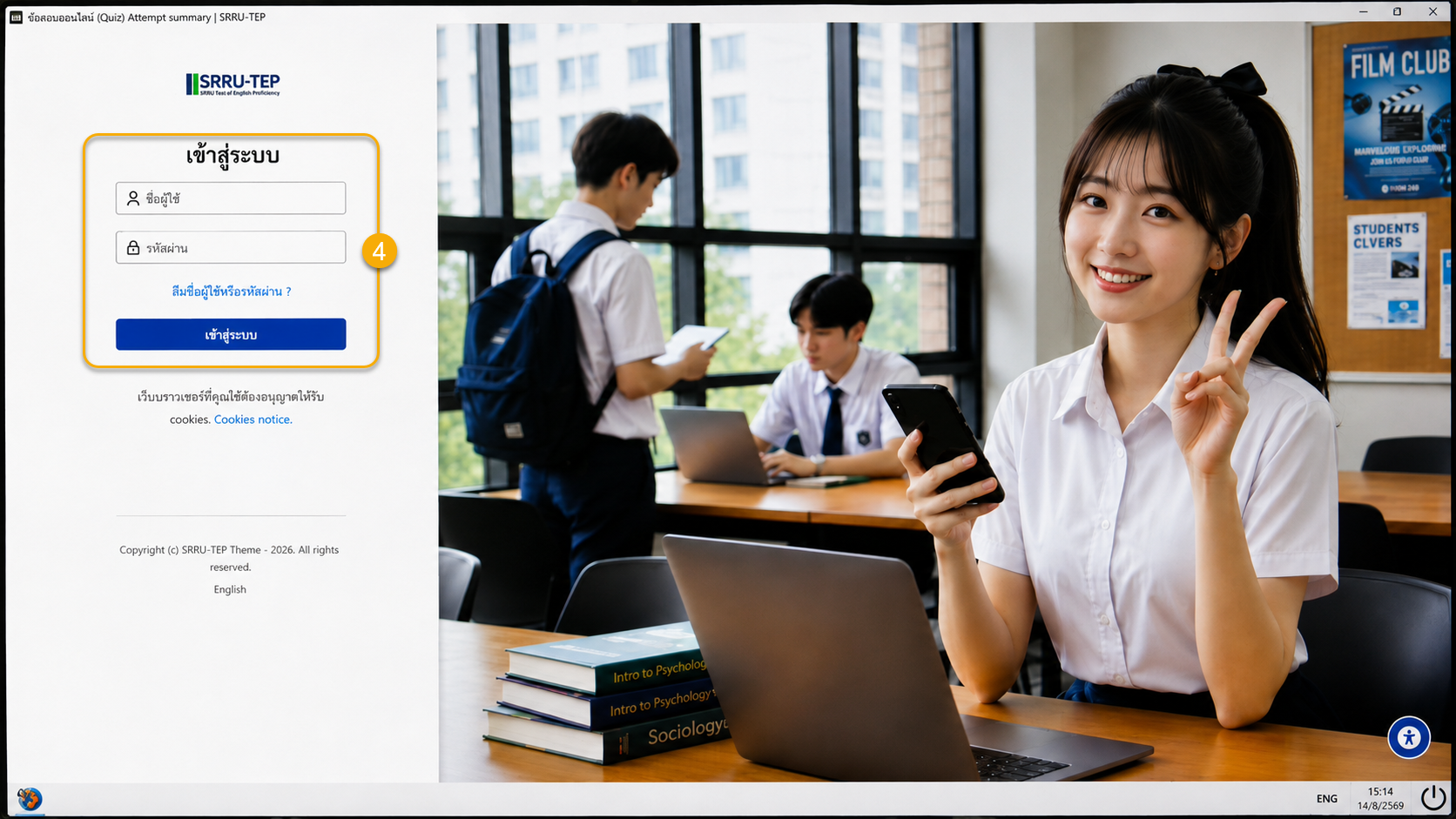
เข้าสู่ระบบ SRRU-TEP ภายใน Safe Exam Browser
- เมื่อ SEB เปิดขึ้น ระบบจะแสดงหน้าเข้าสู่ระบบ SRRU-TEP ให้กรอก ชื่อผู้ใช้ และ รหัสผ่าน ให้ถูกต้อง แล้วคลิก “เข้าสู่ระบบ”
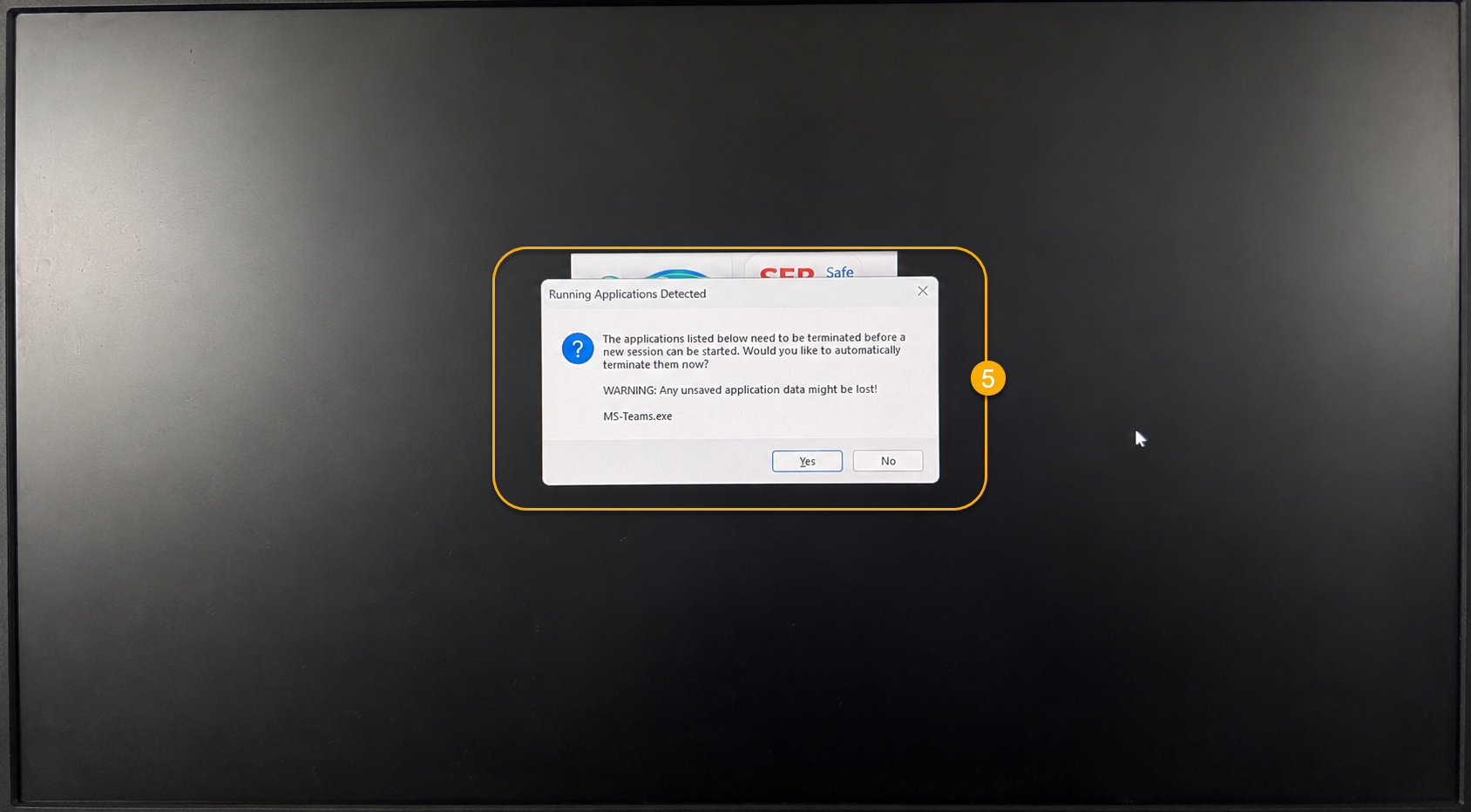
ปิดโปรแกรมที่ขัดขวางการสอบ
- หากมีโปรแกรมอื่นเปิดค้างอยู่ SEB อาจแสดงข้อความ “Running Applications Detected” เช่น
MS-Teams.exe หมายความว่าโปรแกรมดังกล่าวต้องถูกปิดก่อนเริ่มสอบ ให้บันทึกงานที่ค้างอยู่ก่อน แล้วกด “Yes” เพื่อให้ระบบปิดโปรแกรม ข้อควรระวัง: ข้อมูลที่ยังไม่ได้บันทึกในโปรแกรมดังกล่าวอาจสูญหาย
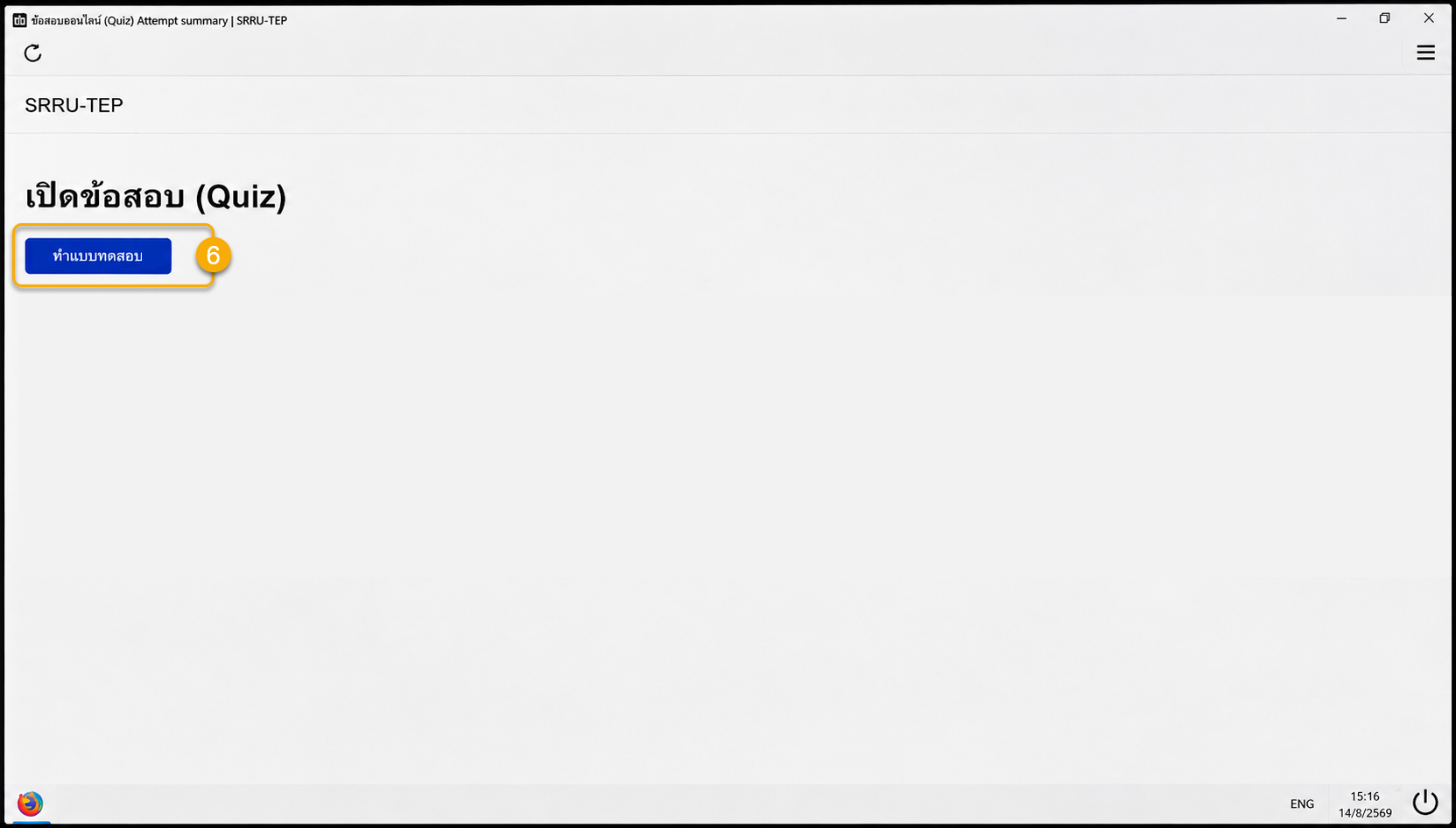
เลือก “ทำแบบทดสอบ”
- เมื่อกลับเข้าสู่หน้า เปิดข้อสอบ (Quiz) ภายใน SEB ให้คลิกปุ่ม “ทำแบบทดสอบ” เพื่อเตรียมเริ่มการสอบ
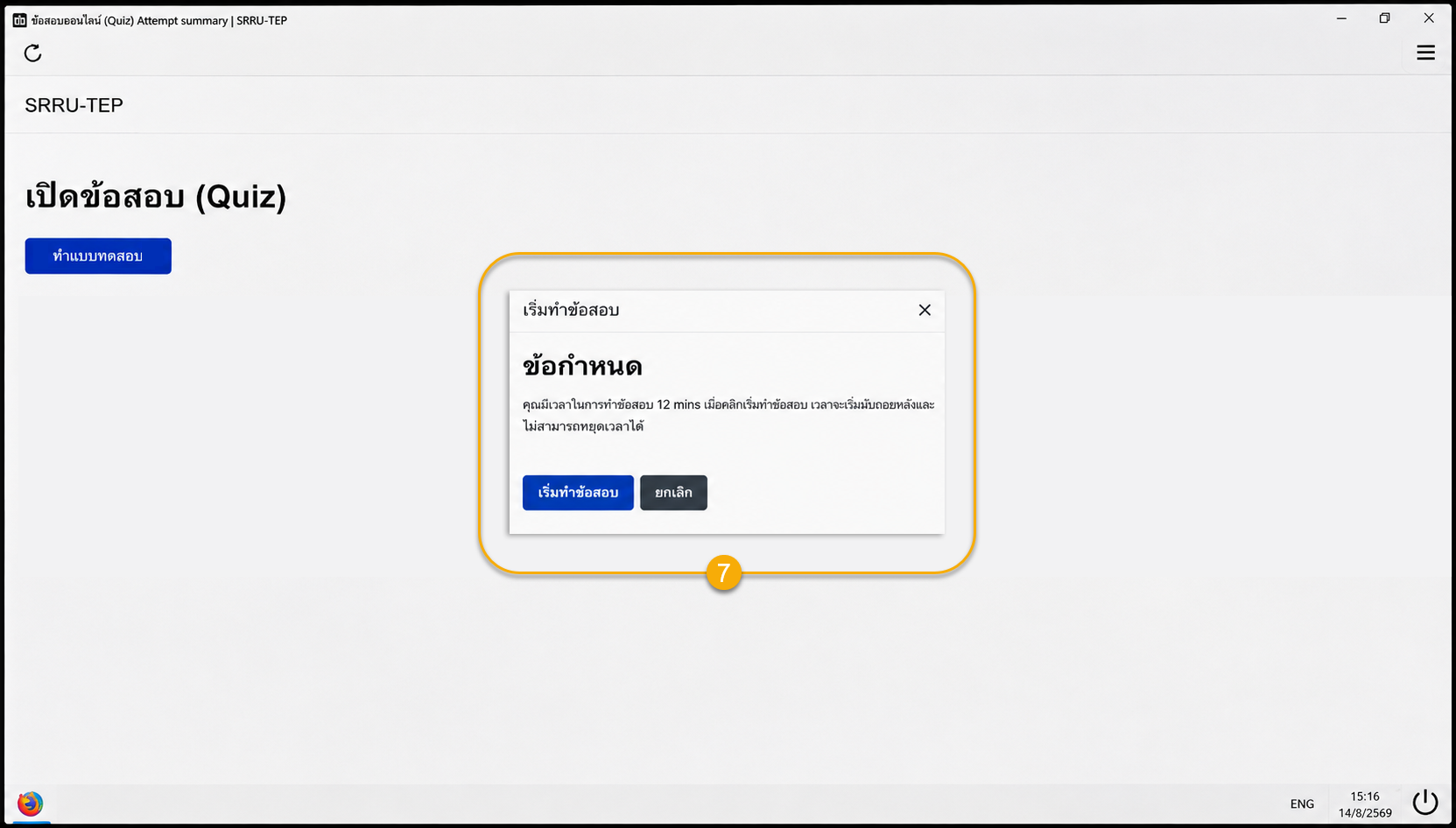
อ่านข้อกำหนดและเริ่มทำข้อสอบ
- ระบบจะแสดงหน้าต่าง “เริ่มทำข้อสอบ” พร้อมข้อกำหนด เช่น ระยะเวลาในการทำข้อสอบ 12 นาที และแจ้งว่าเมื่อเริ่มแล้วเวลาจะนับถอยหลังและไม่สามารถหยุดเวลาได้ เมื่อพร้อมให้คลิก “เริ่มทำข้อสอบ”
ทำข้อสอบภายในเวลาที่กำหนด
-
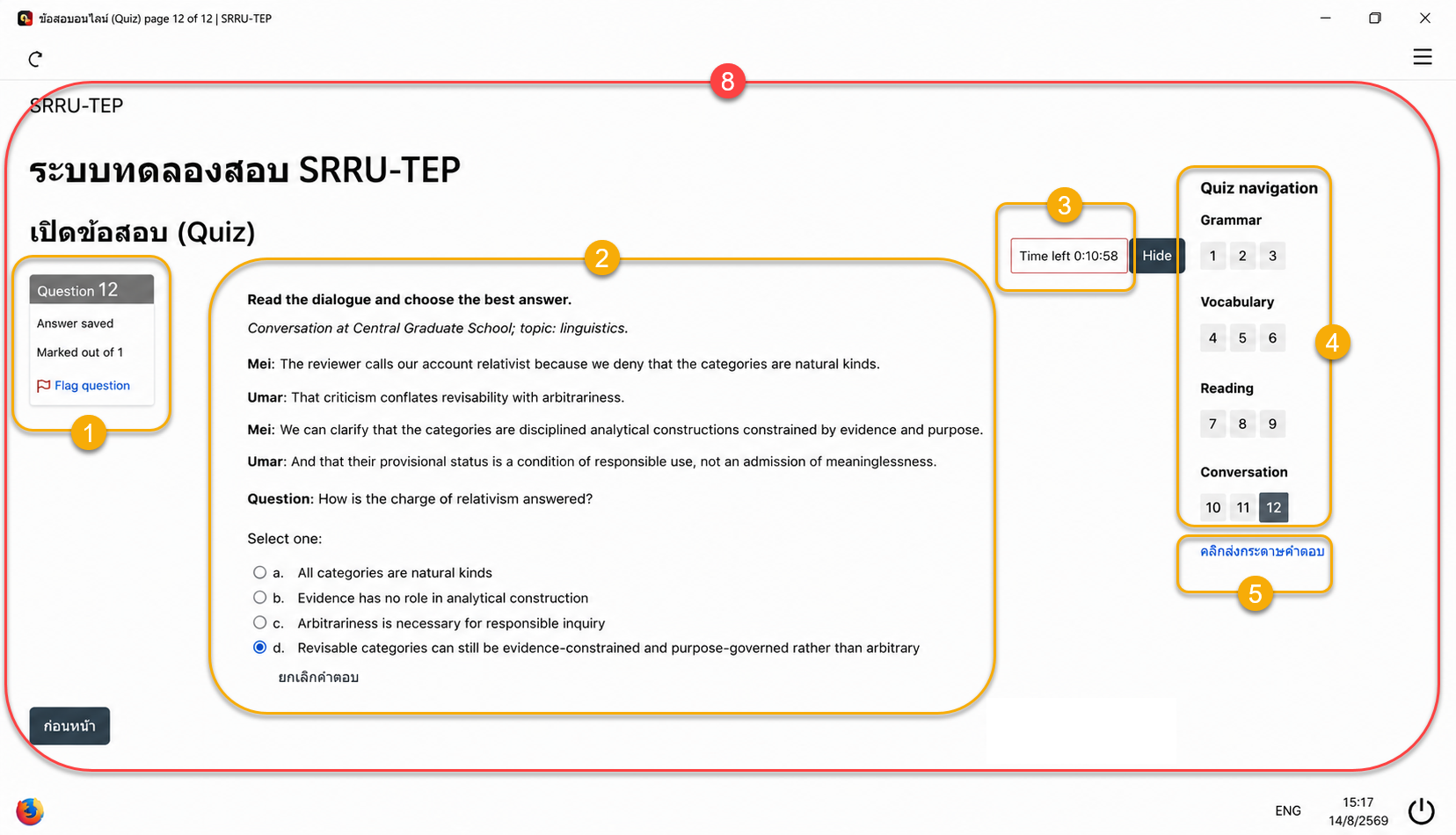
เมื่อเริ่มสอบ ระบบจะแสดงคำถามพร้อมตัวเลือก ให้เลือกคำตอบที่ต้องการ โดยหน้าจอประกอบด้วยส่วนสำคัญ เช่น
- 1. ด้านซ้ายแสดงหมายเลขข้อและสถานะคำตอบ
- 2. ตรงกลางเป็นโจทย์และตัวเลือก
- 3. ด้านบนขวาแสดง Time left หรือเวลาคงเหลือ
- 4. ด้านขวาเป็น Quiz navigation แบ่งเป็น Grammar, Vocabulary, Reading และ Conversation สามารถเลือกหมายเลขข้อเพื่อย้อนกลับไปตรวจสอบคำตอบได้
- 5. เมื่อถึงข้อสุดท้ายและตรวจสอบคำตอบเรียบร้อย ให้คลิก “คลิกส่งกระดาษคำตอบ”
ตรวจสอบและยืนยันการส่งคำตอบ
-
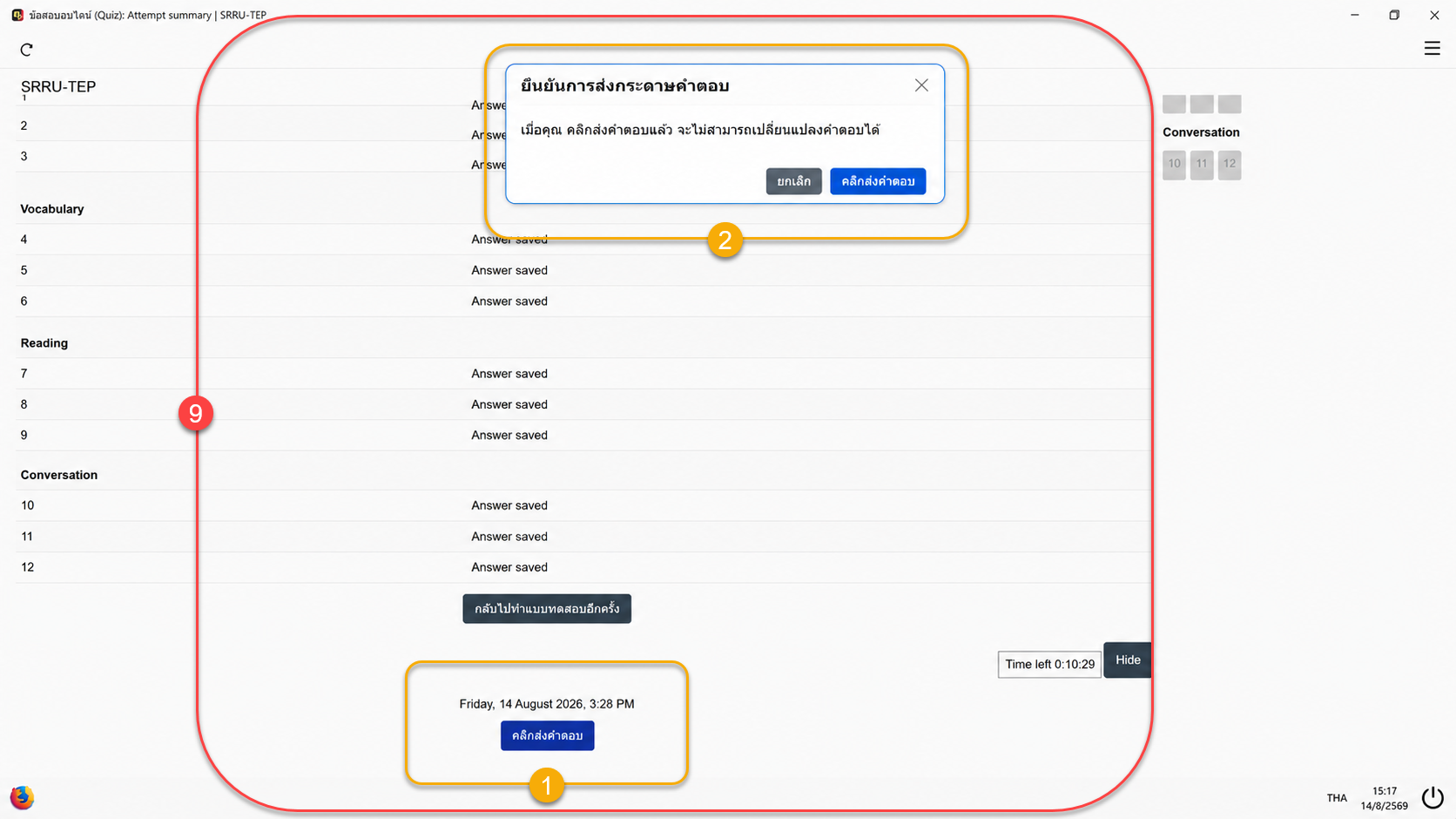
ระบบจะแสดงหน้าสรุปคำตอบ โดยแต่ละข้อที่บันทึกแล้วจะแสดงข้อความ “Answer saved” ให้ตรวจสอบว่าตอบครบทุกข้อ หากต้องการแก้ไขสามารถคลิก “กลับไปทำแบบทดสอบอีกครั้ง” ได้ก่อนส่งจริง
เมื่อแน่ใจแล้วให้คลิก “คลิกส่งคำตอบ” ระบบจะขึ้นหน้าต่าง “ยืนยันการส่งกระดาษคำตอบ” พร้อมข้อความแจ้งว่า เมื่อส่งคำตอบแล้วจะไม่สามารถเปลี่ยนแปลงคำตอบได้ จากนั้นกด “คลิกส่งคำตอบ” อีกครั้งเพื่อยืนยัน
ตรวจสอบสถานะการสอบหลังส่งคำตอบ
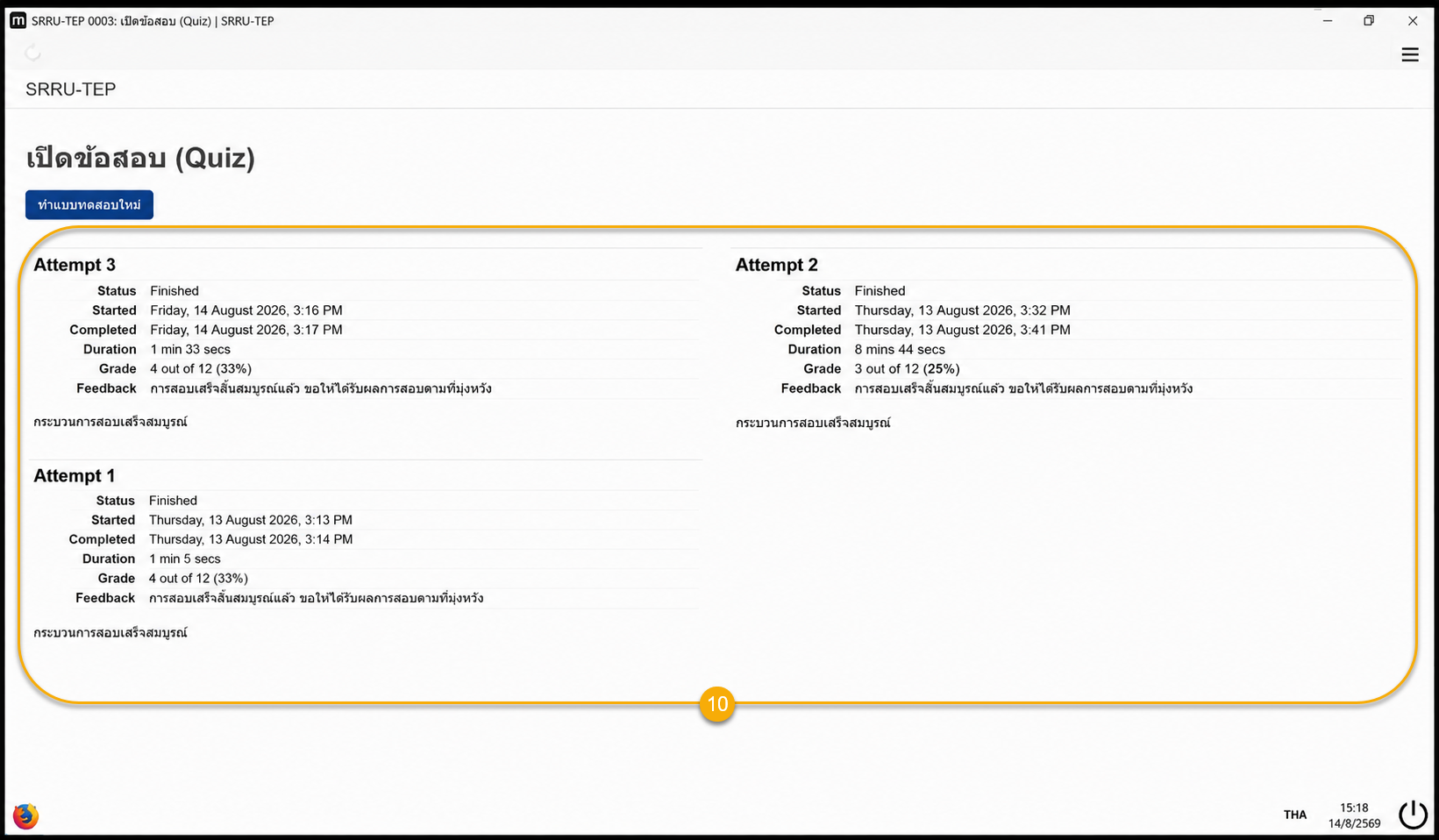
- เมื่อส่งข้อสอบสำเร็จ ระบบจะแสดงประวัติการทำข้อสอบ เช่น Attempt 1, Attempt 2, Attempt 3 พร้อมข้อมูล Status, Started, Completed, Duration, Grade และ Feedback หากสถานะขึ้น Finished และมีข้อความว่ากระบวนการสอบเสร็จสมบูรณ์ แสดงว่าส่งข้อสอบเรียบร้อยแล้ว
ข้อสำคัญ: ระหว่างทำข้อสอบควรอยู่ใน Safe Exam Browser ตลอดเวลา ตรวจสอบเวลาคงเหลือเป็นระยะ และอย่ากดส่งกระดาษคำตอบจนกว่าจะตรวจสอบคำตอบครบทุกข้อแล้ว.